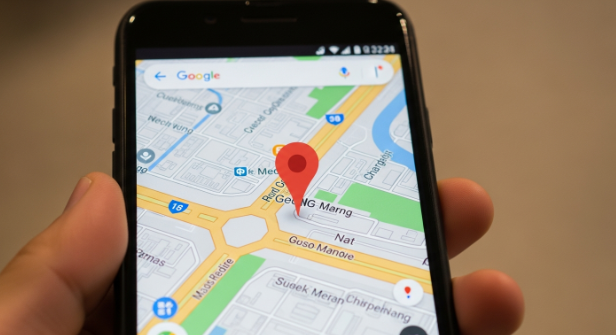
Finding exact locations has never been easier. How to Drop a Pin on Google Maps allows users to drop a pin anywhere in the world, making navigation, sharing, and location tracking simple. Whether you want to mark a meeting spot, a favorite restaurant, or a hidden gem, knowing how to drop a pin on Google Maps is essential for both everyday users and travelers.
What Does Dropping a Pin Mean?
Dropping a pin on Google Maps means placing a marker at a specific location. This marker helps users identify a place accurately without relying on vague directions. The pin acts as a visual reference point. You can save it, share it with friends, or navigate to it instantly using GPS directions.
Why You Should Drop a Pin
Dropping a pin saves time and prevents confusion. It helps avoid missing locations and ensures precise navigation. Additionally, pins are useful for planning trips, meeting friends, or tracking locations you want to revisit. Google Maps pins are also valuable for businesses, as they help customers find exact addresses.
How to Drop a Pin on Google Maps on Mobile
- Open Google Maps on your smartphone.
- Navigate to the area you want to mark.
- Tap and hold the exact spot on the map.
- A pin will appear along with the location’s coordinates.
- You can save the pin, share it, or get directions instantly.
Using this method ensures precise placement, even in crowded areas or complex streets. The process is fast and works on both Android and iOS devices.
How to Drop a Pin on Google Maps on Desktop
- Open Google Maps on your computer browser.
- Locate the area where you want the pin.
- Right-click on the exact location.
- Select “Add a pin” or “What’s here?” depending on your interface.
- Coordinates and details appear, ready to share or save.
Desktop users benefit from a larger view, making it easier to drop pins for specific buildings, parks, or landmarks.
How to Share a Dropped Pin
Sharing a pin is simple. After dropping a pin, click or tap “Share.” You can copy the link or send it directly through email, messaging apps, or social media. Recipients can open the link and view the location instantly. Sharing pins improves coordination, especially for group events or travel plans.
How to Save Dropped Pins
Saving pins allows future access without searching again. Tap “Save” after dropping a pin. You can categorize pins into lists such as Favorites, Want to Go, or Starred Places. Saved pins sync across devices, providing a seamless experience for personal or professional use.
Tips for Accurate Pin Placement
- Zoom in for precision, especially in crowded areas.
- Use satellite view for a realistic perspective.
- Cross-check addresses when saving pins.
- Avoid overlapping pins to reduce confusion.
- Regularly update saved pins for accuracy.
Following these tips ensures your pins remain reliable for navigation and sharing. Proper placement increases efficiency in personal and professional contexts.
Conclusion
Dropping a pin on Google Maps is simple, fast, and highly practical. It ensures accurate navigation, easy sharing, and organized location tracking. Start dropping pins today to enhance your travel, work, and personal life. Take control of your locations and share them with precision.
FAQs
1. Can I drop multiple pins at once?
Yes, you can drop multiple pins individually. However, Google Maps does not currently support selecting multiple spots at the exact same time.
2. Will a dropped pin stay forever?
Saved pins remain in your account unless manually deleted. Unsaved pins disappear once you close the app or browser.
3. Can I drop a pin without an internet connection?
Dropping pins offline is limited. Google Maps requires some connectivity to place or save pins accurately.
4. Can I edit a dropped pin?
Yes, you can adjust the location, add notes, or categorize it after dropping a pin for better organization.
5. How do I remove a dropped pin?
Simply tap the pin and select “Remove” or “Delete.” This removes it from your map view and saved locations if applicable.